Showing posts with label Google Keep. Show all posts

Wednesday, August 21, 2013

Google Keep Reminders

Google Keep now allows you to add reminders to your notes. Just like in Google Now, you can add time-based reminders and location-based reminders. "Time reminders work on all devices, but location reminders will only be triggered on mobile devices," mentions the help center.

"To get started, select the 'Remind me' button from the bottom of any note and choose the type of reminder you want to add. You can add time-based reminders for a specific date and time, or a more general time of day, like tomorrow morning. Adding a location reminder is incredibly easy too — as soon as you start typing Google Keep suggests places nearby," explains Google.

Here's the desktop Google Keep site:


The Android app has been updated and now supports reminders. There's a new navigation drawer with separate sections for archived notes and reminders and you can now add photos from the Gallery without using the "share" feature.


Google Keep integrates with Google Now, so all the Keep reminders are added to Google Now. You'll find them in Settings > My Stuff > Reminders. For some reason, the reminders added from Google Now aren't available in Google Keep.

You'll get notifications in Google Now, the Google Keep app for Android, the Google Keep app for Chrome (desktop notification) and the Google Keep desktop site (alert box), but you won't see redundant notifications. If you have both the Google Search app and Google Keep, you'll only get notifications from Google Keep.

When Google Tasks is discontinued (it will happen eventually), Google Keep will be the replacement. It's optimized for mobile and it doesn't integrate with Gmail or Google Calendar, but at least it's constantly improving and it has a cool mobile app.

Sunday, July 7, 2013

Google Keep Tips

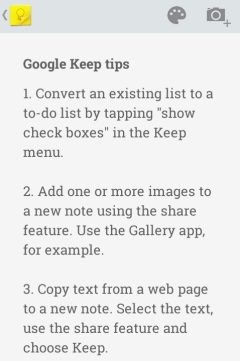
Here are some tips for Google Keep. Since it's a service designed for mobile devices, most of the tips are for the Android app.

Mobile

1. Convert an existing list to a to-do list by tapping "show checkboxes" in the Keep menu.

2. A simple way to add images to a new note: select one or more images in the gallery app or a file manager, use the share feature and select Keep.

3. Copy text from a web page to a new note. Select the text, use the share feature and choose Keep.

4. Save the title of a web page and the URL to a new note. Use the share option from your favorite browser.

5. Add a Keep widget with the latest notes. Resize the widget to show more notes.

6. Reorder notes: long press a note and drag it to a different position.

7. Use colors to organize notes. For example, blue notes are related to work.

8. Take multiple photos from a note. You can then upload the album to Google+ using the share feature.

9. Write short notes quickly: tap "add quick note", type the note and tap "Done".

10. Duplicate a note: open it, tap the share button and select Keep.

11. Tap the microphone to dictate your note and to save your voice recording. You can use Keep as a voice recording app.

12. Find notes with voice recordings: they have a small play icon next to the date.

13. Remove a recording by tapping "x" next to the audio player. You can also remove photos in the same way.

14. Dictate notes without saving audio files by tapping the microphone button from the keyboard.

15. Use Google Voice Search to dictate notes. Start with "note to self" and select Keep from the list of applications after dictating the note.

16. Change the default background color: tap "add quick note", type something, then tap the color palette icon and pick a color.

17. Use the minus operator to exclude keywords when you use the search feature. Use quotes for exact matches. Examples: [milk -buy], ["buy milk"].

Desktop

18. Read your notes online from any device at drive.google.com/keep.

19. Install the Chrome app to read your notes offline when you use your computer.

20. Get permalinks for your notes: open the Google Keep site in a desktop browser, switch to the grid view and click a note.

21. Download voice recordings: open Keep in a desktop browser, click a note, mouse over the voice recording and click "Download".

22. Keyboard shortcuts:

j/k - navigate to the next/previous note
n/p - same as j/k, but also useful for navigating between list items
c - compose a new note
/ - use the search feature
e - archive selected note
# - delete selected note
o - open selected note
Enter - edit selected note
Ctrl+g - toggle between list and grid view
Esc - finish editing a note.

Thursday, May 2, 2013

Google Keep App for Chrome

Speaking of new-style packaged apps for Chrome, here's a new app: Google Keep. It's another way to access the recently launched service for taking notes.


The app looks just like the Google Keep site, but it works offline. This means that you can access your notes or create new notes even if you don't have an Internet connection. Unfortunately, you can't insert images when you're offline. Another limitation is that new notes aren't uploaded in the background when you're back online, so you need to open the app.


{ via Chrome Blog }

Wednesday, March 20, 2013

Google Keep, Now Available

Google Keep has been launched: it's Google's latest attempt to create a service for taking notes. Unlike Google Notebook, Keep is a Google Drive app (the Drive integration is not yet ready for public release), it doesn't have a rich-text editor and it's optimized for mobile.

There's an Android app and a desktop site. Both use the sticky notes metaphor and you can choose the color for each note, add text, images, lists and voice recordings that are automatically converted to text in the mobile app. Both interfaces let you choose between the grid view and the list view.


Google Keep lacks many of the features that were available in Google Notebook: labels, sorting, comments, multiple notebooks, rich-text editor, sharing. It looks like a lightweight Google Notebook for mobile devices.

"With Keep you can quickly jot ideas down when you think of them and even include checklists and photos to keep track of what's important to you. Your notes are safely stored in Google Drive and synced to all your devices so you can always have them at hand," informs Google.

It's likely that each Google Keep note will be a file in Google Drive, so you'll be able to share it with other people, add it to a folder, download it etc.

For now, Google Keep is the only Google Drive service that has more features in the Android app than in the desktop interface.


{ Thanks, Sterling. }

Sunday, March 17, 2013

Google Keep, a New Service for Taking Notes

Carlos Jeurissen found some interesting hints about a new Google Drive app called Keep. There are multiple references to Google Keep in the GDrive code, including some URLs like: https://drive.google.com/keep/?note. In fact, the codename for Google Keep is "memento" and the MIME type for Google Keep files is "application/vnd.google-apps.note". Obviously, Google Keep is a replacement for Google Notebook, a service that has been discontinued back in 2009.


Carlos also found the service's icon and a short URL that redirects to the Play Store page for a non-existent Google Keep app.


Google has a cool Chrome extension called Scratchpad. It's great for taking notes and it syncs with Google Docs. Let's hope that Keep is better than both Scratchpad and Google Notebook.

Update: Android Police has some screenshots of the new service.

{ Thanks, Carlos. }