Showing posts with label Google Photos. Show all posts

Wednesday, August 14, 2013

View Google Drive Photos in Google+

Google Drive is supposed to be the service that stores all your files and lets you access them from any device. It's supposed to be, but it's not. There are other Google services that are better suited for storing some of your files: Google+ Photos for storing photos, YouTube for sharing videos, Google Play Music for uploading music.

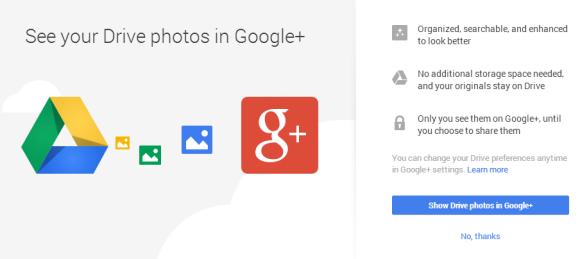
If you happen to store photos and videos in Google Drive, you can now add them to Google+ Photos. Just visit this page and click "Show Drive photos in Google+".

Click the "albums" section and you'll see some albums with a Google Drive icon: they're from Google Drive. For some reason, Google+ displayed only a few of my Google Drive photos and videos, not all of them.
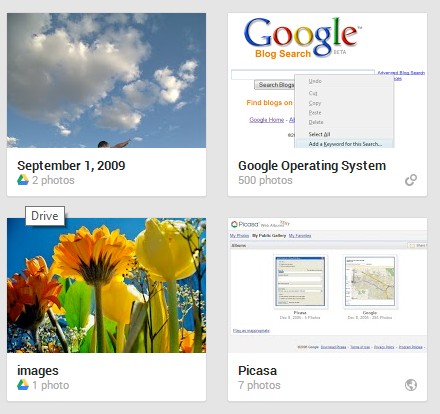
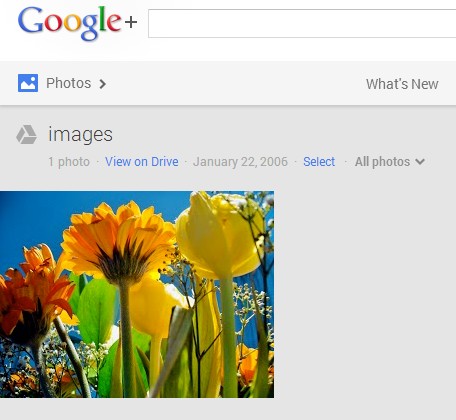

"If you store photos in your Google Drive, you can also choose to view each folder as an album in Google+. Only you will be able to see them in your library until you choose to share them. If you have Auto Awesome or Auto Enhance turned on, then those features will be applied to your photo album but your original drive files will remain intact. After you enable the feature, folders containing JPG, GIF, WebP, RAW or video files will be viewable from your Google+ photo library and each Drive folder will become a different album marked with the Google Drive icon. Only you will be able to see them in your library until you choose to share them." explains Google.

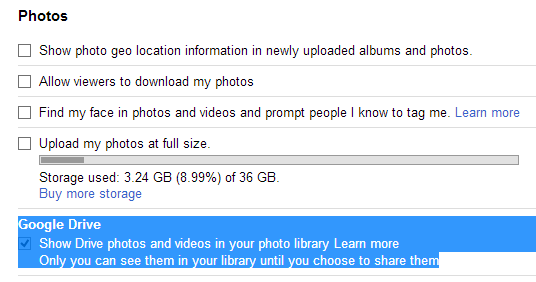
To enable or disable this feature, you can go to the Google+ settings page, find the Photos section and check or uncheck "Show Drive photos in your photo library". To remove a Drive album from Google, open the album in Google, click the drop-down next to "Share" and then click "remove album" (the album will only be removed from Google+, not from Google Drive).

There are many limitations: "This feature is not available for Google Apps accounts. Screenshots, icons, thumbnails, and other images may not be viewable using this feature. You cannot tag, +1, edit, or comment on Drive photos. To enable these features, share the photo first. Sharing a photo will create and post a copy of the photo - your original Drive photo will remain intact and your circles will not gain access to your Drive."

I don't think that the new feature is a good idea. Why not store all your photos in Google Drive and use Google+ Photos as an application that can manage photos and display them in interesting ways? This way, you would no longer have to deal with the old Picasa Web limitations (1000 photos/album, limited sharing, no sub-albums) and you could access all your photos in both Google Drive and Google+ Photos.

Tuesday, August 13, 2013

Launch the Google+ Photos App in Chrome

Initially launched just for the Chromebook Pixel, the Google+ Photos packaged app also worked on other Chromebooks. The app's description suggested that you'll be able to use in Windows, Mac OS and regular Linux distributions, not just in Chrome OS.

If you've already installed the app in Chrome, now you can run it: just click the Google+ Photos icon from the new tab page or the app launcher and then click "run anyway". Until now, the "run anyway" button wasn't available.


Here's the Google+ Photos app in Windows 8:


Unfortunately, the app's page from the Chrome Web Store only lets you install the app in Chrome OS, at least officially. For example, if you've installed the app on a Chromebook and you use Chrome Sync, then it should also be installed on your other computers that run Chrome.


How to install the app in Chrome? First enable "Experimental Extension APIs" in the chrome://flags page and restart the browser. Go to this page, right-click the "Add the Chrome" button, select "Inspect element", remove the "webstore-button-disabled" class from the code (use Ctrl+F and search for webstore-button-disabled, double-click the value of the class attribute, delete "webstore-button-disabled" and press Enter), then click "Add to Chrome".


{ Thanks, Andrea Leardini, Tim Nguyen and Stef van der Woerdt. }

Thursday, July 25, 2013

Find Auto Awesome Google+ Images

Google+ has a feature called Auto Awesome, which automatically creates new photos that use the photos you've uploaded. For example, when you upload similar images at different exposures, Google+ will add an image that simulates HDR. When you upload a series of photos in succession, Google+ will create an animated image. "If you've taken a series of photos with overlapping landscape views, Auto Awesome will stitch these photos together into a panoramic image."

Unfortunately, it's not always easy to find these images. Here's a way to find the animated images created by Google: go to Google+ Photos and search for [motion.gif]. This works because all the animated GIFs created by Google+ include "motion" in the filename. You may also find other images that include "motion" in the filename or caption, but they weren't created by Google+. The nice thing is that Google's thumbnails are also animated GIFs, so it's easy to spot Auto Awesome images.

If you can't find Auto Awesome animated GIFs, click "From your circles" below the search box and you'll certainly find some GIFs if you follow the right people.

This post should have an included an animated screenshot, but I decided to add a YouTube video:


If you'd like to find panoramic images, search for pano.jpg. For HDR images, search for hdr.jpg, but you'll probably get a lot of false positives.


To find Auto Awesome images shared by other Google+ users, you can search for #autoawesome in Google+ and restrict the results to photos. There's also a community for Auto Awesome images.

You can also use Google Image Search and search for [site:plus.google.com inurl:motion.gif] for animated images and [site:plus.google.com inurl:pano.jpg inurl:googleusercontent.com] for panoramas.

{ via Jeremy Milo }

Google+ Photos App: Not Just For Chromebooks

Remember the Google+ Photos app for Chromebooks? It was originally launched as a Chromebook Pixel exclusive, but it worked well on my Samsung Series 5 Chromebook.

The app is available in the Chrome Web Store. If you switch to French (or any language other than English), the app's description changes and it reveals something interesting:

Google+ Photos will currently instantly upload all .jpg files from the default pictures folder on your computer every time it is run. These directories include:

Windows XP: C:\Users\yourname\Pictures
Windows 7: C:\My Documents\yourname\My Pictures
Linux: /home/yourname/Pictures
Mac: /Users/yourname/Pictures


This means that the app will also work in Windows, Linux and Mac OS, not just in Chrome OS. Right now, when you install the app in Chrome for Windows, you get this error message:


{ Thanks, Jonathan. }

Thursday, June 27, 2013

Google+ Photos Trash

Did you know that Google+ Photos has a trash section? You can find it by clicking "More" and then "Trash" or you can use this link. Google says that the "items will be permanently deleted after 60 days" and shows a link for manually emptying the trash.


But there's more:

"Photos and videos you move to trash in Google+ are stored for a short period of time before they are permanently deleted. If you move an item to trash, and later want to retrieve it, you can do so by following these instructions: select Photos from the Google+ navigation menu, click More and select Trash from the dropdown, click one or many checkboxes to select photos and choose Restore to return these photos back to Google+. These photos will be restored to the same album(s) they were located prior to being moved to trash. To permanently delete photos, select the items you'd like to delete, and click Delete permanently."


Picasa Web Albums doesn't have a trash section. If you delete a photo from the Picasa Web interface, you can find it in the Google+ Photos trash. When you delete a photo from Google+ Photos, there's a message that says "your photo has been moved to trash" and links to the trash section.

For some reason, Google+ photos from the trash are automatically deleted after 60 days, Gmail's messages are deleted after 30 days, while Google Docs files are never deleted automatically. I wonder why.

{ Thanks, Fernando. }

Tuesday, June 25, 2013

Google+ Photos App for Chromebooks

A few months ago, François Beaufort posted some screenshots of a Native Client Chrome app for Google+ Photos. The app is now available, but Google says it's only for the Chromebook Pixel, which is not exactly true.


"When you plug an SD card into your Pixel, the app will back up your new photos to Google+ automatically. (For your eyes only, of course.) And when you're offline, you can still view your most recent photos. The Pixel's high resolution display makes your photos look their best, and browsing via touchscreen is a lot of fun. You can share individual photos, set of photos, or an entire album in just a few seconds. Simply select the images you want, then click 'Share.'"


It's a pretty useful app for Chromebooks and it's not limited to the Pixel. In fact, I don't see why it couldn't work on any desktop computer that runs Chrome. It could even replace Picasa at some point.


You can download the app from the Chrome Web Store. Google engineers "are working to bring the app to other Chromebooks as well", even though the app works on other Chromebooks. The Office Viewer powered by the Google-acquired Quickoffice used to be limited to the Chromebook Pixel and it's now available as a Chrome extension.

Update: I've tried to install the app in Chrome for Windows and it worked:


... but then I got this message:


Then I switched to my Samsung Chromebook Series 5, installed the app and it worked well.


Even the SD card import worked:


So the app should work on any Chromebook. Maybe it's only optimized for the Pixel, maybe there are some bugs that need to be fixed. All I know is that the app worked well on my Chromebook and I don't have a Chromebook Pixel.

Thursday, June 13, 2013

How Google's Image Recognition Works

Just like Google Drive, Google+ Photos uses some amazing image recognition technology to make photos searchable, even if they don't have captions or useful filenames. "This is powered by computer vision and machine learning technology, which uses the visual content of an image to generate searchable tags for photos combined with other sources like text tags and EXIF metadata to enable search across thousands of concepts like a flower, food, car, jet ski, or turtle," explains Google.

Google acquired DNNresearch, a start-up created by Professor Geoffrey Hinton and two of his graduate students at the University of Toronto. They built "a system which used deep learning and convolutional neural networks and easily beat out more traditional approaches in the ImageNet computer vision competition designed to test image understanding." Google built and trained similar large-scale models and found that this approach doubles the average precision, compared to other object recognition methods. "We took cutting edge research straight out of an academic research lab and launched it, in just a little over six months," says Chuck Rosenberg, from the Google Image Search Team.

The paper, titled "ImageNet Classification with Deep Convolutional Neural Networks" [PDF], explains how this works. It uses supervised learning, 7 hidden weight layers and feature extractors learned from the data. "Our neural net has 60 million real-valued parameters and 650,000 neurons. It overfits a lot. Therefore we train on 224x224 patches extracted randomly from 256x256 images, and also their horizontal reflections."


Google says that the publicly available photo search feature recognizes 1100 tags. "We came up with a set of about 2000 visual classes based on the most popular labels on Google+ Photos and which also seemed to have a visual component, that a human could recognize visually. In contrast, the ImageNet competition has 1000 classes. As in ImageNet, the classes were not text strings, but are entities, in our case we use Freebase entities which form the basis of the Knowledge Graph used in Google search. An entity is a way to uniquely identify something in a language-independent way. (...) Since we wanted to provide only high precision labels, we also refined the classes from our initial set of 2000 to the most precise 1100 classes for our launch."

Some other examples of classes that are recognized: car, dance, kiss, meal, hibiscus, dahlia, sunsets, polar bear, grizzly bear. The system recognizes both generic visual concepts and specific objects. "Unlike other systems we experimented with, the errors which we observed often seemed quite reasonable to people. The mistakes were the type that a person might make - confusing things that look similar."

Tuesday, June 4, 2013

Find Your Photos Using Google Search

Here's a cool Google Search feature that I missed: search for [my photos] and you'll see the latest images you've uploaded to Google+ Photos. Obviously, you need to log in to your Google account and join Google+ if you haven't done that already.

You can also search your photos directly from the Google Search box: enter [my photos], followed by one or more keywords and you'll see the results almost instantly. This works with the image recognition feature, so you'll get results for [my photos portrait] or [my photos flowers] even if the photos don't include "portrait" or "flowers" in the file name or captions. "To make computers do the hard work for you, we've also begun using computer vision and machine learning to help recognize more general concepts in your photos such as sunsets, food and flowers," informs Google.


Another way to use this feature is to search for [my photos], followed by the name of an album. Google will show some photos from that album. You can also search from [my photos from Paris last year], [Daniel's photos] (if you follow Daniel on Google+), [Daniel's photos from Germany 2011], [Matt Cutts photos cats], [Sergey Brin photos ocean].


It also works for people tagging, so you can search for [photos of Sergey Brin]. They're restricted to the photos uploaded by the people/pages you follow.


Unfortunately, if you click "Photos from you and your friends", Google will send you to the Google+ Photos homepage, instead of the list of search results.

To switch to the regular Google Image Search results, click the globe icon next to the gears button. This will hide personal results, but you can switch back by clicking the people icon.


{ via Inside Search }

Wednesday, May 22, 2013

Google+ Photo Search With Image Recognition

Last year, Google Drive added an advanced image search feature powered by Goggles that recognizes objects and uses OCR technology to extract text. The same feature is now available in Google+: search for [sunflower], click "More", restrict the results to "Photos" and select "Most recent". You'll find sunflower images from Google+ posts that don't even include "sunflower", not even in the image filename.


This also works for the images you've uploaded to Picasa Web Albums/Google+ Photos or the images uploaded by your circles.


{ via Android Police }

Monday, May 13, 2013

Shared Storage for Gmail, Google Drive and Google+ Photos

Until now, Gmail offered 10GB of free storage and Google Drive/Google+ Photos only 5GB of free storage. Offering more storage for email than for storing files doesn't make a lot of sense. That's probably the reason why Google decided to share the storage for Gmail and Google Drive, so that you have a single free storage limit: 15 GB. Google Apps for Business/Education offers 30GB of free storage.

"With this new combined storage space, you won't have to worry about how much you're storing and where. For example, maybe you're a heavy Gmail user but light on photos, or perhaps you were bumping up against your Drive storage limit but were only using 2 GB in Gmail. Now it doesn't matter, because you can use your storage the way you want," explains Google.

There's also a new interface for the Google Storage page:


But what if you've purchased additional Drive storage? That storage is now shared between Google Drive, Google+ Photos and Gmail, but it's not clear what happens to the bonus Gmail storage. Google says "you're no longer limited to a 25 GB upgrade in Gmail — any additional storage you purchase now applies there, too". Does this mean there's no longer extra Gmail storage when you buy Drive storage?

Apparently, Google dropped the 25GB upgrade option for $2.49/month and "plans start at $4.99/month for 100 GB". If you still see the old Google Storage page and you intend to use this option, upgrade now.

And here's an idea: why not store all Gmail attachments in Google Drive and offer free storage for Gmail messages (text-only)?

{ Thanks, Herin. }

Tuesday, March 5, 2013

Picasa Web Albums Redirects to Google+ Photos

After replacing Picasa Web with Google+ Photos in the navigation bar and redirecting individual albums to the Google+ interface, now Google redirects picasaweb.google.com to the albums section of Google+ Photos. You can still go back to the old Picasa Web interface if you use this URL: https://picasaweb.google.com/lh/myphotos?noredirect=1. Google displays this URL in a message that says: "Click here to go back to Picasa Web Albums".


When you use that URL, Google also sets a cookie value that prevents the redirect to Google+ Photos even when you enter picasaweb.google.com in the address bar.

Google+ Photos has constantly improved last year, while Picasa Web Albums no longer added new features. It's obvious that Google+ Photos is an upgraded version of Picasa Web Albums, which will be discontinued in the future. There are still a lot of cool Picasa Web features that haven't been added to Google+ Photos (Creative Commons licensing, photo mapping, featured photos, search), so let's hope that Google won't retire Picasa Web Albums until Google+ Photos adds these features.

{ Thanks, Dave and Eric. }

Tuesday, June 14, 2011

Google Adds Voice Search, Visual Search and Results Prerendering

Two of the most important Google mobile services: voice search and visual search will now be available from your computer.

Voice search, a feature that's built into Android, also works in Google Chrome and allows you to search using your voice. Chrome added support for the Speech Input API back in April and it's the only browser that implemented the API. Right now, Chrome's speech input feature is only available for English.

"We first offered speech recognition on mobile search, but you should have that power no matter where you are. You should never have to stop and ask yourself, 'Can I speak for this?' — it should be ubiquitous and intuitive. So we've added speech recognition into search on desktop for Chrome users. If you're using Chrome, you'll start to see a little microphone in every Google search box. Simply click the microphone, and you can speak your search," explains Google. The feature is gradually rolled out, so you may not see it yet.


Google Goggles is a full-fledged visual search engine that's trapped in a mobile application. But why do you have to buy a smartphone to use Google Goggles when you could simply upload an image to Google and find related pages and images on the Web? "Search by Image" does more than TinEye, the "reverse image search engine" that lets you find an image on the Web.

"Google uses computer vision techniques to match your image to other images in the Google Images index and additional image collections. From those matches, we try to generate an accurate 'best guess' text description of your image, as well as find other images that have the same content as your search image. Your search results page can show results for that text description as well as related images," mentions Google.

You can drag and drop an image to the search box, paste an image URL in the search box or click the camera icon and upload an image. Google generates a hybrid results page that shows both related images and Web search results for the equivalent text query.


Google also a developed two extensions for Chrome and Firefox that let you right-click on an image and use it as a query. "With these extensions, you can initiate a search on Google using pictures on the web. You can discover photos of places, learn more about art pieces, identify landmarks, and more."


While voice search and visual search are useful, the most impressive search feature launched by Google today is Instant Pages. The new feature only works in Chrome 13+ (available in Canary/Dev Channel and soon in beta), but it will radically improve your search experience. Chrome prerenders the top search result if it's likely that you will select it, so you no longer have to wait for the page to load. You might remember a feature called "prefetching" that was first supported by Firefox. Prerendering is a lot more powerful than prefetching.

According to a Chrome developer, "prefetch is Firefox style prefetching of resources specified (just populating the cache). In Chrome, with prerender, we don't just download the URL specified, but render the whole page including running all the JavaScript and downloading and rendering all the embedded resources."

For most users, Instant Pages will look like magic. They'll search for [nytimes] or [amazon], click the first result and be surprised to see that the page loads instantly. Google says that this feature saves 2-5 seconds on a typical search.


But Chrome's prerendering is not limited to Google searches. Any Web developer can use it by inserting a link element with a special value for the "rel" attribute. "Sometimes a site may be able to predict with reasonable accuracy which link the user is most likely to click on next -- for example, the 'next page' link in a multi-page news article. In those cases, it would be faster and better for the user if the browser could get a head start loading the next page so that when the user clicks the page is already well on its way to being loaded," suggests Google.

Tuesday, January 4, 2011

Voice Search for Google Chrome

Voice Search is a Google Chrome extension that lets you search using your voice. It's not developed by Google, but it uses an experimental Chrome feature called form speech input. The feature is enabled by default in the dev channel builds, but it can be manually enabled by adding a command-line flag.

"Voice Search comes pre-loaded with the following default services: Google, Wikipedia, YouTube, Bing, Yahoo, DuckDuckGo and Wolfram|Alpha. You can also add your own user-defined search engines. It also integrates a speech input button for all websites using HTML5 search boxes. This extension requires a microphone. Speech input is very experimental, so don't be surprised if it doesn't work. Also, try to speak clearly for best speech recognition results," suggests the author.


Speech recognition is limited to English and it doesn't work very well, but this extension is a good way to test a feature that will be enabled in the future Chrome releases. If you have a website, it's quite easy to add support for speech input, but it may take a while until Google's Speech Input API specification becomes a standard and all browsers implement it.

{ Thanks, Silviu. }