Showing posts with label Google Plus. Show all posts

Tuesday, August 20, 2013

Translate Google+ Posts and Comments

Google+ added translation links for posts and comments written in languages you may not understand. Click "Translate" and Google+ will translate the post and the comments. This only works for public posts and the feature is only available on the desktop Google+ site.


Here's what happens after clicking "Translate":


This feature is not that useful if you use Chrome, since the browser has a built-in translation feature that works in Google+ just like it works for any other site.


"The Google Translate team is always working to make information more accessible to individuals around the world. In Google+ this means bringing people together regardless of their written language, and breaking down language barriers that can limit the exchange of ideas," informs the Google Translate blog.

Wednesday, August 14, 2013

Google+ Maps Current Locations

Here's a cool Google+ feature: mouse over the "currently in" location at the top of a Google+ profile that uses location sharing and something magic will happen: the cover photo will be replaced by a static map that shows that location.

Here's an example of Google+ profile where you can try this feature.


The latest version of the Google+ app for Android added a few new features, including better location sharing. "Starting today you can share your pinpoint or city-level location with others (if you want), and you can do so on a circle-by-circle basis. For example: you can share your pinpoint location with family, and your city-level location with co-workers. You can also use circles to filter who appears on your Locations map."

{ spotted by Jérôme Flipo }

Tuesday, July 30, 2013

Google's New Navigation Interface in a Google+ Screenshot

Remember the new navigation interface tested by Google a few months ago? It replaces the black bar with a new menu similar to Chrome's app launcher.

A screenshot from a Google+ "learn more" page shows a new Google+ interface that uses the app launcher, an updated share button and a new search box without a search button. The screenshot shows the old Google+ notification button, not the Mr. Jingles bell.


{ via Google Plus Daily, spotted by Gabriel Komarnicki. }

Google Maps Views

There's a new community site for Google Maps and it's called Views. It's a place where you can upload panoramic images created using the Photo Sphere feature, which is limited to Android 4.2 and Nexus devices.

"The photo sphere camera mode on your Android phone makes it easy to capture a series of photos and automatically turn them into a seamless 360º experience. You can also turn your DSLR camera panoramas into photo spheres," explains Google. This page has more information about the photo sphere mode and about creating panoramic images manually.


Google Maps Views has a camera button that lets you add photos from Google+. You can also use Android's share feature and share a photo from the gallery with Google Maps, so that it's quickly uploaded. Google creates a page like this one with all your photo spheres.


Google Maps Views showcases popular photo spheres and some special Street View collections, including landmarks (Eiffel Tower), natural wonders (Grand Canyon), museums, arenas, restaurants and small businesses. You can also use the search box and find a list of popular photos and top photographers for that location.

Photos spheres don't replace Street View, they only complement Street View with a fun, fresh and personal perspective that captures the the world around you.

Thursday, July 25, 2013

Find Auto Awesome Google+ Images

Google+ has a feature called Auto Awesome, which automatically creates new photos that use the photos you've uploaded. For example, when you upload similar images at different exposures, Google+ will add an image that simulates HDR. When you upload a series of photos in succession, Google+ will create an animated image. "If you've taken a series of photos with overlapping landscape views, Auto Awesome will stitch these photos together into a panoramic image."

Unfortunately, it's not always easy to find these images. Here's a way to find the animated images created by Google: go to Google+ Photos and search for [motion.gif]. This works because all the animated GIFs created by Google+ include "motion" in the filename. You may also find other images that include "motion" in the filename or caption, but they weren't created by Google+. The nice thing is that Google's thumbnails are also animated GIFs, so it's easy to spot Auto Awesome images.

If you can't find Auto Awesome animated GIFs, click "From your circles" below the search box and you'll certainly find some GIFs if you follow the right people.

This post should have an included an animated screenshot, but I decided to add a YouTube video:


If you'd like to find panoramic images, search for pano.jpg. For HDR images, search for hdr.jpg, but you'll probably get a lot of false positives.


To find Auto Awesome images shared by other Google+ users, you can search for #autoawesome in Google+ and restrict the results to photos. There's also a community for Auto Awesome images.

You can also use Google Image Search and search for [site:plus.google.com inurl:motion.gif] for animated images and [site:plus.google.com inurl:pano.jpg inurl:googleusercontent.com] for panoramas.

{ via Jeremy Milo }

Sunday, July 14, 2013

Update the Google+ Notification Counter

Google updates the Google+ notification counter automatically, but there's a simple way to force a refresh: mouse over the bell icon. This works for Google+ and all Google services that show the notification icon in the navigation bar.


You can also click the bell icon to refresh the counter and see the latest notifications, but this should be obvious. Most likely, Google anticipates your actions and assumes that you are about to click the bell icon when you mouse over it and that's why it updates the counter.

Another tip: drag the bell icon to the address bar or right-click it and select "open link in new tab" to read the Google+ notifications in a new page.

Saturday, July 13, 2013

Mute All Google+ Posts From a Person or Page

If you follow some people or pages that clutter your Google+ stream or if you'd like to read their posts when you click their circle, there's a very easy way to mute them.

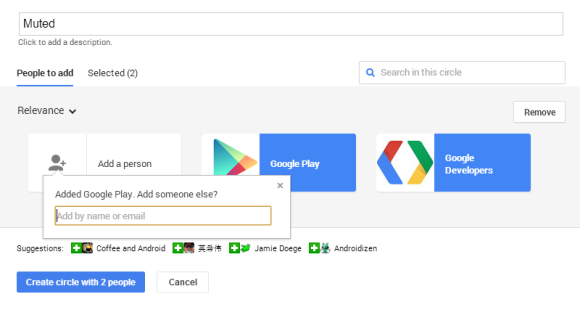
1. Create a new circle. You can call it Muted.

2. Add the people and pages you want to mute.


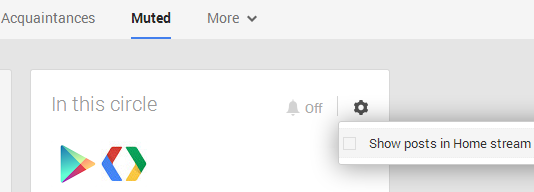
3. Go to your Google+ stream, click "More" below the search box and select the circle you've created.

4. Click the wheel icon from the "In this circle" box and uncheck "Show posts in Home stream".


5. You can add other people later to the Muted circle. You can also mute other circles or just pick "Amount: Fewer" from the settings menu instead of hiding all the posts.

This works even if someone is in multiple circles. If you add someone to multiple circles and at least one of the circles has the "Show posts in Home stream" setting unchecked, you'll no longer see his posts in the Home stream.

Wednesday, July 10, 2013

Google's +1 Activity Updates

Until now, your Google+ stream only included the posts from people/pages/communities you follow and some posts from the "what's hot" section. Now you'll also see some of the posts +1d by the people you follow.

"Many of the best photos, articles and videos we find online are the ones recommended by friends. So we're making it easier to discover these recommendations in your Google+ stream. Starting today, we'll occasionally highlight posts that were +1'd by people in your circles and if you +1 a post, we may highlight it to your friends as well," says Shimrit Ben-Yair, from Google.

Now +1s for Google+ posts have more value because they're a signal for recommendations. If more people from your circles +1 the same post, then it's likely that you'll want to read it. +1 is now an indirect sharing tool: you're not sharing a post with anyone who is following you (or some of your circles), you're helping Google provide better recommendations. +1s are already used to improve Google's search results, ads and now the Google+ stream.


If you want to control who sees your +1 activity updates, go to this page and change the "visible to" value. The default option is "extended circles", but you can pick "public", "your circles", "only you" or a custom list of circles and people. You can check the posts you +1d here: it's an activity log that starts to show data once this feature is available to you. Google is "rolling out this feature over the next few days".

It's interesting to notice that the default visibility value is extended circles, which include your circles and the people in your circles' circles. That means your +1 can influence a lot of people.


Hopefully, Google+ will do a better job at recommending content than YouTube. Instead of only showing the latest videos uploaded by your subscriptions, YouTube also shows the videos they liked, their comments and more.

Friday, June 28, 2013

2 Years of Google+

Google+ was launched 2 years ago to fix online sharing. "We'd like to bring the nuance and richness of real-life sharing to software. We want to make Google better by including you, your relationships, and your interests. And so begins the Google+ project," announced Google.

2 years later, Google+ grows faster than anticipated, brings cool new features, enables vibrant discussions, makes your photos look better and redefines the word "hangout".

There's a special Google +2 logo:


... and the jingle is now festive:


Here's the animated version:


Is Google+ an upgraded Google? Google+ brought a new consistent design for Google's services, made sharing more straightforward and search more social and personal. Google+ was a necessary tectonic shift for Google. It's now a different Google Labs, where the experiments turn into features that are used by hundreds of millions of people. From auto-enhanced photos to auto-tagged content, from video conferencing to event management, from social games to surfacing useful content, from object recognition to photo editing, Google+ is the place where you can use some of the most advanced features released by Google in the past 2 years.

Don't forget to follow this page if you use Google+ and you want to find even more news and tips about Google.

Friday, June 21, 2013

Google Mine

Google prepares a new service that's called Google Mine. It's integrated with Google+ and it's a way to keep track of the items you own or you'd like to have and share some of them with your circles. Right now, the service is tested internally at Google.

"Google Mine lets you share your belongings with your friends and keep up to date with what your friends are sharing. It enables you to control which of your Google+ Circles you share an item with. It also lets you rate and review the items, upload photos of them and share updates on the Google+ Stream where your friends get to see and comment on them."


Google Mine lets you organize the things you own, use, wish for, and more: gadgets, clothing, electronics, DVDs, cars, bikes or anything!

It also enables social interactions around them with your Circles using Google+:

* Catalog your belongings, track what you have
* Review your belongings for your friends to see
* Control who sees what, track conversations
* Send requests to borrow or try out friends' stuff
* Share stuff you wish for, get recommendations
* Share stuff you are giving away, find takers
* Follow, browse, search stuff that friends share

There's also an Android app, currently available in Bazaar, Google's internal Play Store.


Here are some messages used by Google Mine. As you can see, the service lets you enter a lot of information about your objects. For example, you can change the status of an object to "lent", "given away", "got it back", "lost it", "had in the past". You can post videos about the object, write reviews, add it to a wishlist and maybe others can buy it using Google Shopping. You can also check popular items and the items others have shared.


After adding an object, Google shows this message: "You have just started using Google Mine and have added some items to your collections. Now, you can let your friends know by posting to your Google+ Stream."

You can ask other people to send you their objects: "You are starting a request for an item. Google Mine will enable you to communicate on this request with the receiver by creating a post to your Google+ Stream, visible only to you and the receiver."

You can also:

* Search for stuff people have shared on Mine.
* See instant matches for your stuff, and the people in your circles.
* Use What's Hot to follow what others are sharing.
* Organize and share your stuff as lists.

Another cool feature: a 3D viewer called Katamari that uses WebGL to shows your objects.

Some icons used by Google Mine:


{ Thanks, Florian K. }

Wednesday, June 19, 2013

New Google+ Notifications

Google announced some Google+ changes last week but some of them were rolled out gradually and I couldn't see them.

The Google+ notifications button looks different: it's now a bell. The number of new messages is more subtle and looks like iOS badges. The new notifications tray separates the messages you've read from the messages you haven't read yet. There's a new button that lets you "mark all as read" and a funny message: "All caught up!", but you can also mark as read a message by clicking the small "x" icon. All of this reminds me of Google Reader.

Thumbnails are bigger and you'll sometimes see 4 of them for each message. The notifications tray now supports infinite scrolling, so you can read all your messages, and Google remembers your state when you close the tray. You'll no longer be able to use the arrow keys to navigate when you click the bell icon, but the keyboard shortcuts start to work when you click one of the messages (you can use j/k, left/right, up/down).

These aren't all the changes: "When you read a notification on one device, we'll mark it as read on your other devices. Likewise, dismissing a notification (with a swipe or a click) does so everywhere, so you can say goodbye to annoying repeats."


Just in case you want to see the old interface for notifications, here are some screenshots:


And here's a cool "jingle" animation from the new interface (click the bell when it says "all caught up"):


{ Thanks, Garfield. }

Tuesday, June 4, 2013

Find Your Photos Using Google Search

Here's a cool Google Search feature that I missed: search for [my photos] and you'll see the latest images you've uploaded to Google+ Photos. Obviously, you need to log in to your Google account and join Google+ if you haven't done that already.

You can also search your photos directly from the Google Search box: enter [my photos], followed by one or more keywords and you'll see the results almost instantly. This works with the image recognition feature, so you'll get results for [my photos portrait] or [my photos flowers] even if the photos don't include "portrait" or "flowers" in the file name or captions. "To make computers do the hard work for you, we've also begun using computer vision and machine learning to help recognize more general concepts in your photos such as sunsets, food and flowers," informs Google.


Another way to use this feature is to search for [my photos], followed by the name of an album. Google will show some photos from that album. You can also search from [my photos from Paris last year], [Daniel's photos] (if you follow Daniel on Google+), [Daniel's photos from Germany 2011], [Matt Cutts photos cats], [Sergey Brin photos ocean].


It also works for people tagging, so you can search for [photos of Sergey Brin]. They're restricted to the photos uploaded by the people/pages you follow.


Unfortunately, if you click "Photos from you and your friends", Google will send you to the Google+ Photos homepage, instead of the list of search results.

To switch to the regular Google Image Search results, click the globe icon next to the gears button. This will hide personal results, but you can switch back by clicking the people icon.


{ via Inside Search }

Wednesday, May 22, 2013

Google+ Photo Search With Image Recognition

Last year, Google Drive added an advanced image search feature powered by Goggles that recognizes objects and uses OCR technology to extract text. The same feature is now available in Google+: search for [sunflower], click "More", restrict the results to "Photos" and select "Most recent". You'll find sunflower images from Google+ posts that don't even include "sunflower", not even in the image filename.


This also works for the images you've uploaded to Picasa Web Albums/Google+ Photos or the images uploaded by your circles.


{ via Android Police }

Wednesday, May 15, 2013

New Google+ and Google Hangouts

Google+ has received a major update. There's a new multi-column desktop interface, a new messaging platform and Google+ Photos is a lot smarter.


The desktop Google+ looks different. You can see more content thanks to the new interface that shows up to 3 columns, depending on the window size. "Photos and videos can fill the entire width of the stream, making it easier to scan, and nicer to look at. The sharebox bounces, the menus slide, and the cards flip and fade."

Google+ can now automatically generate hashtags for your posts, so other people can find related content. "Hashtags appearing at the top of a post are related to the post's content. Clicking on a hashtag will let you explore related posts. Hashtags with gray coloring are those used by the author of the post while hashtags with blue coloring are added by Google based on the content of the post. Related hashtags help posts get discovered and build conversations around the content of that post."

If you don't like this feature, you can disable it from the settings.


The unified chat service is not called Babel, the name is Google Hangouts. It replaces the Google Chat sidebar in Google+ and the Gmail Chat box and there are apps for Android, iOS and a Chrome extension. Google Hangouts combines Google+ Messenger, Google Talk/Chat and the old Hangouts feature, so you can use text chat, video chat, photo sharing and group conversations on the most popular platforms. You only see notifications once, no matter if you're using the desktop sites or the mobile apps. The built-in chat history lets you go back in time and read old conversations.


Google+ Photos is smarter. It can now find your best photos and use Auto Enhance to combine various effects that make your photos look better. "Auto Enhance makes instant adjustments to brightness, saturation and more. Auto Enhance is on by default so every photo you upload will look its best." There's also Auto Awesome, which creates new images from your photos: collages, motion images, HDR photos, panoramic images, improved group photos. Both Auto Enhance and Auto Awesome can be disabled in the settings.

Sunday, April 21, 2013

Outsourcing Blogger Comments to Google+

While Blogger's new commenting system has a lot of cool features, there's an important downside: Google+ Comments has nothing to do with Blogger.

The old comments are available in the new interface, but the new comments are not available in the old commenting system, if you decide to switch back. Blogger's comment feeds don't include the comments from the new interface, you can no longer manage comments from the Blogger dashboard and the new comments aren't included when you export your blog.

Here's the empty comment feed for a post that has a lot of comments:


When you switch to Google+ Comments, you outsource the comments to Google+, but Google+ doesn't have a section that lets you manage the comments and there's no way to export the new comments.

Add Google+ Comments to Any Web Page

Until Google launches an API for the Google+ Comments feature, you can use the code from Blogger. Browsing the Net found a way to embed Google+ Comments on any website or blog. Here's the code you could use:

<script src="https://apis.google.com/js/plusone.js">
</script>
<div class="g-comments"
data-href="[URL]"
data-width="642"
data-first_party_property="BLOGGER"
data-view_type="FILTERED_POSTMOD">
</div>

Replace [URL] with the address of your page. If you enter the URL of a different page, Google shows some Google+ posts that link to that page and all the comments for that page. For example, if you enter the URL of this blog post, you'll see all the comments and Google+ messages from this page and you can also add a new comment.

It's important to keep in mind that this is an unofficial way to add Google+ Comments and Google can always change the code or remove some features.

{ Thanks, Jerzy. }

Friday, April 19, 2013

Blogger Comments Powered by Google+

I don't know if you've notice, but this blog's comments look different. That's because I've switched to the new Google+ Comments feature for Blogger.


The upgraded commenting system preserves the existing comments, but the future comments require a Google+ account. That means, visitors can no longer post comments anonymously, using an OpenID account or using a Google account that hasn't been upgraded to Google+. When posting a comment, visitors can also share it on Google+. The new commenting system doesn't just show the comments posted on Blogger, it also shows all the Google+ messages that link to the post and their comments.

Just like Disqus, Google+ Comments shows by default the best comments and there's an option to show the most recent comments. It's not clear how Google determines the top comments, but the number of +1s could be one of the signals. You can also restrict the comments to the people from your Google+ circles.

Bloggers will notice some other changes: the comment management feature from Blogger is no longer available and you can only manage comments for each post. That's a significant downside, especially if you receive a lot of comments. When one of your posts receive new comments, you'll see a notification in the Google bar and you'll get an email notification. I haven't found a way to disable these notifications, not even from the Google+ settings page.

How to enable Google+ Comments if you have a Blogger blog? "Google+ Comments is available for Blogger users who have created a Google+ profile and connected it with their blog. If you haven't upgraded your Blogger profile to a Google+ profile and would like to, you can start the process by clicking the Google+ tab on the Blogger dashboard. Once your blogs are linked to a Google+ profile, a new 'Use Google+ Comments' setting will be displayed on the Google+ tab of your blog," explains Google. If your blog has a heavily modified template, you may need to reset widgets or use the code from this page.

There are additional limitations: Google+ Comments is not available for private blogs and for blogs with adult content. This means that the old commenting system will continue to be available as long as Blogger supports these kinds of blogs. You can always disable Google+ Comments and go back to the legacy Blogger commenting system.

It's important to point out that Google+ Comments are embedded as an iframe (the URL starts with https://plusone.google.com/_/widget/render/comments) and the comments are no longer included inside the Blogger page. Google manages to index content from iframes, but the change could affect your Google rankings.

Another interesting thing: it's the first time when the official Google Blog has comments.

Some early thoughts:

* Blogger is now more relevant, it's less likely that it will be discontinued in the next few years

* Blogger finally has a modern commenting system

* Google+ Comments will be available for other blogging platforms

* "sign in with Google+" will make Google+ even more popular as an identity service.

Sunday, March 24, 2013

Google+ Search Filter for Photos

If you want to restrict Google+ search results to posts that include photos, you can now do that. After performing a search, click the "Everything" dropdown and select "Photos".


"You can find any photo post (...) from items shared only with you, to public photos shared by some of the great photographers on Google+. Here are some searches that I enjoy: [Long exposure], [Steel wool], [Cartoons]," says Google's Dave Cohen.

Unfortunately, Google shows a long list of posts instead of a grid of photos. It's worth pointing out that the search results don't include photos uploaded to Google+ that haven't been explicitly shared.

{ via Search Engine Roundtable }

Friday, March 8, 2013

Google Support Will Use Hangouts

Google will start to use Google+ Hangouts to provide support. The screensharing feature is especially useful because a Google employee can see what's on your computer screen, so you don't have to take screenshots.

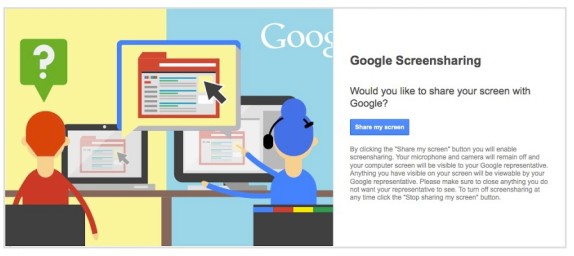
Here's the text used by the screensharing feature:

"Would you like to share your screen with Google? By clicking 'Share my screen' button you will enable screensharing. Your microphone and camera will remain off and your computer will be visible to your Google representative. Please make sure you close anything you do not want your representative to see. To turn off screensharing at any time click the 'Stop sharing my screen' button."


It's not clear which Google service will have this option, but the wording suggests it will be limited to businesses that use services like Google+, AdWords and Google Apps.

{ Thanks, Florian. }

Tuesday, March 5, 2013

Picasa Web Albums Redirects to Google+ Photos

After replacing Picasa Web with Google+ Photos in the navigation bar and redirecting individual albums to the Google+ interface, now Google redirects picasaweb.google.com to the albums section of Google+ Photos. You can still go back to the old Picasa Web interface if you use this URL: https://picasaweb.google.com/lh/myphotos?noredirect=1. Google displays this URL in a message that says: "Click here to go back to Picasa Web Albums".


When you use that URL, Google also sets a cookie value that prevents the redirect to Google+ Photos even when you enter picasaweb.google.com in the address bar.

Google+ Photos has constantly improved last year, while Picasa Web Albums no longer added new features. It's obvious that Google+ Photos is an upgraded version of Picasa Web Albums, which will be discontinued in the future. There are still a lot of cool Picasa Web features that haven't been added to Google+ Photos (Creative Commons licensing, photo mapping, featured photos, search), so let's hope that Google won't retire Picasa Web Albums until Google+ Photos adds these features.

{ Thanks, Dave and Eric. }