Showing posts with label InOut. Show all posts

Wednesday, July 10, 2013

Export Google Latitude Friends

Google Latitude has been discontinued and a help center article offers more information about this. Unfortunately, there's something inaccurate: "you can't export your friend information out of Latitude".

Well, you can export your Latitude friends because they're added to a hidden Gmail group. Here's how to do that:

1. go to this Google Contacts page

2. select all contacts

3. click "More", then "Export" and click the "Export" button. You'll get a CSV file with all your Latitude friends.


4. (optional) import the contacts to Google+ and use location sharing - Google's Latitude replacement. Go to the People section in Google+, click "connect services" in the left sidebar, select "open address book" and pick the CSV file you've exported. You'll get a list of people you can add to a new Google+ circle (let's call it Latitude). Enable location sharing at the bottom of this page and restrict it to the circle you've created: pick "Custom" and select the Latitude circle. Unfortunately, Google only shows location data on profile pages and in the Locations section of the Google+ app for Android, but that may change in the future.


"Google Latitude will be retired on August 9th, 2013. Products being retired include Google Latitude in Google Maps for Android, Latitude for iPhone, the Latitude API, the public badge, the iGoogle Gadget, and the Latitude website at maps.google.com/latitude. We'll delete your list of friends on Latitude. You won't be able to see or manage friends. Any existing friends will no longer see your location in Google Maps for mobile on Android, Latitude for iPhone, the public badge, the iGoogle Gadget, and the Latitude website at maps.google.com/latitude, if you continue to use these products," says Google.

Location History will continue to be available, since it's used by Google Maps, Google Earth and Google Now. "Google Location History is an opt-in feature that allows you to store your past Google location history and see it on a Google Map or in Google Earth. Your Location History is visible only to you." Location Reporting will also be available, since it "allows Google to periodically store and use your device's most recent location data in connection with your Google Account".

Sunday, April 14, 2013

Google's Inactive Account Manager

Google has recently added a feature that lets you decide what happens when you no longer use your account. It's called Inactive Account Manager and the goal was to offer a feature that tells Google "what you want done with your digital assets when you die or can no longer use your account".

You need to set a timeout period (3/6/9/12 months), add your phone number and contact details for up to 10 trusted friends or family members (email addresses and phone numbers), then decide if you want to share Google Takeout for services like Blogger, Picasa Web Albums, YouTube with those people and delete your account once it's inactive. Google will alert you one month before the timeout period expires.


It's a feature that seems to be useful if you want Google to automatically delete your account when you're no longer alive and share some data with the people you trust. Unfortunately, not all the Google Takeout data is easy to use. YouTube videos, Picasa photos, Drive files and Gmail's contact files are easy to open, but the data from Google+, Blogger, Reader is more difficult to read. When you set up this feature, you can pick the services you want.

You can also use the Inactive Account Manager just to notify friends and family members that you no longer use that account or to send an automated response to all incoming Gmail messages once your account becomes inactive.

Friday, November 16, 2012

Export Google Reader Data in Google Takeout

When Google Reader dropped support for the built-in sharing features and integrated with Google+, the settings page added a long list of JSON files you could save to your computer to export your followers, the items you've shared or starred, your notes and more. Until then, you could only export your subscriptions.


Now all these files can be downloaded from Google Takeout, a service that lets you export data from Google+, Google Drive, Google Contacts, Picasa Web, YouTube and more. Reader is probably the only Google service that sends users to Google Takeout to export data.


Unfortunately, you need to download 8 files even if you only want to export the subscriptions OPML file. Google has to create a ZIP archive first, so you'll have to wait a lot more. Instead of downloading a small XML file, you need to download a large archive (34MB for my account). That's a general issue with Google Takeout, which only lets you download all your YouTube videos, all your Picasa Web photos, all your Google Drive files.

Another service recently added to Takeout is Google Latitude. You can download a JSON file with your location history data.

Let's hope that developers will create cool apps that parse these JSON files and make them more useful. Maybe Google should also offer human-readable formats like HTML.

{ via Data Liberation Blog. Thanks, Herin. }

Monday, October 1, 2012

Download the Videos You've Uploaded to YouTube

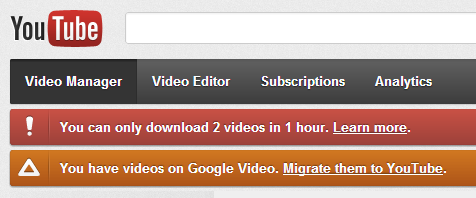
YouTube lets you download the videos you've uploaded to the service, but the feature has a lot of limitations. "You can download MP4s of your own uploads, so as long as they do not have any copyrighted content or an audio track added through the Audio tool." But that's not all: "there is a limit of two downloads per hour for downloading your video to MP4. The Download MP4 button will not appear next to your videos if you've already downloaded two videos in an hour."


The limitations are absurd, considering that they are your videos and you've uploaded them. There are many services and apps that let you download any YouTube video, but they break YouTube's terms of services.

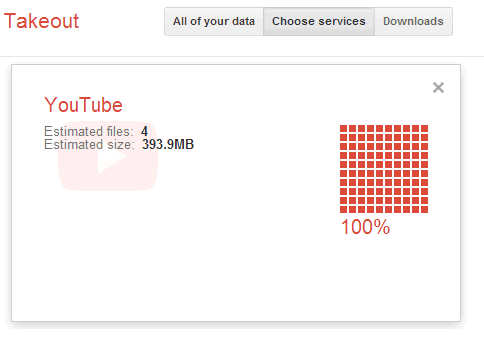
Fortunately, Google's Data Liberation launched a much better feature in Google Takeout: download the original videos you've uploaded to YouTube with one click. That's right, no more limitations, you can download all your videos and it's the only way to get the original versions, not the videos transcoded by YouTube. "No transcoding or transformation - you'll get exactly the same videos that you first uploaded. Your videos in. Your videos out," explains Google.


Hopefully YouTube doesn't find out about this feature and cripple it with some preposterous limitations.

{ Thanks, Herin. }

Wednesday, January 25, 2012

Two Ways to Export Your Google Docs

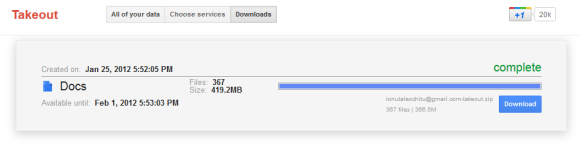
Google Takeout supports a new service: Google Docs. Now you can use the same interface to batch export your documents.


I tried both Google Takeout and the built-in feature from Google Docs that lets you download your documents. Even if they have the same purpose, they're quite different. The Google Docs feature is more flexible: you can choose to download only spreadsheets or presentations and skip all the other documents. You can also skip the files uploaded to Google Docs and not converted to a Google Docs format (for example: PDF files, archives and video files). Google Takeout has a "configure" feature, but you can't skip one or more document types. Another subtle difference is that Google Takeout lets you export only the files that you own, while Google Docs exports all the files from your account.


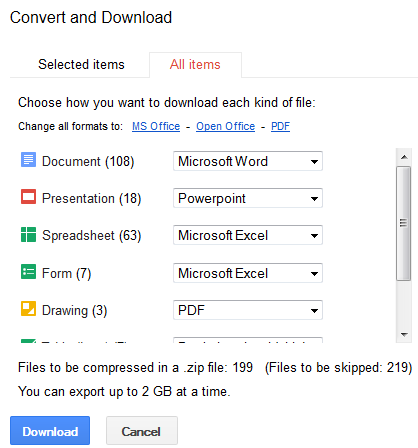
How to export all your files from Google Docs? Just go to the Google Docs homepage, select one or more documents, click "More" and then "Download", click the "All items" tab, pick your favorite formats and click "Download". The process is not that intuitive and you shouldn't have to select a file to see the download option.

{ via Data Liberation Blog }

Friday, July 15, 2011

Export Google +1 Pages

Google's Data Liberation team added a new feature to Google Takeout: exporting the pages you've +1'd. The pages are saved to a bookmarks.html file that can be imported by almost any browser.


Google now offers three ways to bookmark pages: Google Bookmarks and Chrome Bookmarks for private bookmarking, Google +1 for social bookmarking. While Google Bookmarks supports labels and Chrome Bookmarks uses folders, Google +1 doesn't have a way to organize your bookmarks. While Google Bookmarks and +1 have Web interfaces, you can no longer view your Chrome bookmarks online.

Tuesday, June 28, 2011

Google Takeout

Google wants to differentiate from Facebook by offering a lot of ways to export your data. Google Takeout is a feature that's included in Google+, but it's also available as a standalone service. You can use it to export your contacts, Google Buzz messages, Picasa Web photos and Profile data with one click.

"Google Takeout lets you take your data out of multiple Google products in one fell swoop. Moreover, you’ll find that all your data is in portable and open formats‚ so it's easy to import to other services quickly," mentions the Data Liberation blog.


I've downloaded my data in a huge ZIP archive that included all my Buzz posts saved as HTML files, VCF files for my Gmail groups and the first 100 photos from each of my Picasa Web album. What's the point of downloading the first 100 photos?

Wednesday, January 5, 2011

Google Bookmarks Import Without Using Google Toolbar

I really don't understand why Google didn't add a feature that lets you upload a bookmarks file exported by your browser to Google Bookmarks. Google still recommends to install Google Toolbar in Internet Explorer or Firefox to upload bookmarks, but this shouldn't be necessary. That's like installing Picasa to upload your photos to Picasa Web Albums.

Fortunately, Mihai Parparita built a tool for exporting your Delicious bookmarks to Google Bookmarks and it can be used to upload any bookmarks file to Google Bookmarks. Here's how to do that:

1. Go to delicious.com and sign in. If you haven't used Delicious before, you'll sign in using a Yahoo account. If you've previously bookmarked web pages using Delicious, it's probably a good idea to create a new account.

2. Unlike Google Bookmarks, Delicious has a bookmark importing feature. Upload the HTML file exported by your browser and wait until all your bookmarks are imported.


3. Use Delicious to Google Bookmarks to import your bookmarks to Google Bookmarks. You'll end up with two new labels added by the importing/exporting tools: imported and delicious-export.


The nice thing about Mihai Parparita's tool is that it's open source and it can be modified to import HTML bookmarks file.