Thursday, November 8, 2012

Do Not Track in Google Chrome

Chrome 23 added support for "do not track" requests, a feature that is supposed to disable tracking cookies, but it's ignored by most sites. To enable this feature, go to Chrome's settings page, click "show advanced settings" at the bottom of the page, enable "Send a 'Do Not Track' request with your browsing traffic" and click "OK".


Google informs users that "any effect depends on whether a website responds to the request, and how the request is interpreted. For example, some websites may respond to this request by showing you ads that aren't based on other websites you've visited. Many websites will still collect and use your browsing data - for example to improve security, to provide content, services, ads and recommendations on their websites, and to generate reporting statistics." In fact, "most web services, including Google's, do not alter their behavior or change their services upon receiving Do Not Track requests".

Chrome is actually the last major browser that adds support for "Do Not Track", a feature that is already available in Firefox, Opera, Safari and Internet Explorer. Microsoft enabled "Do Not Track" by default in IE 10 and many sites will ignore the request because users didn't explicitly enable it.

While the "Do Not Track" HTTP header was supposed to make things easier for privacy-conscious users, it's now a useless feature. The word "tracking" is vague, advertising companies are not required to honor "Do Not Track" requests and IE 10 offers new incentives to ignore this feature.

For now, extensions like "Keep My Opt-outs" or sites like aboutads.info are more effective. You can also disable third-party cookies or install ad blocking software.

The Chrome App Launcher

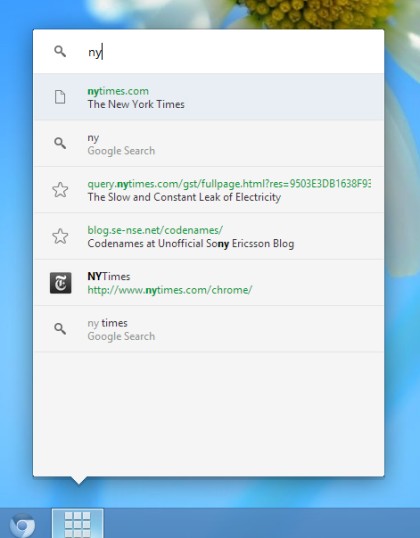
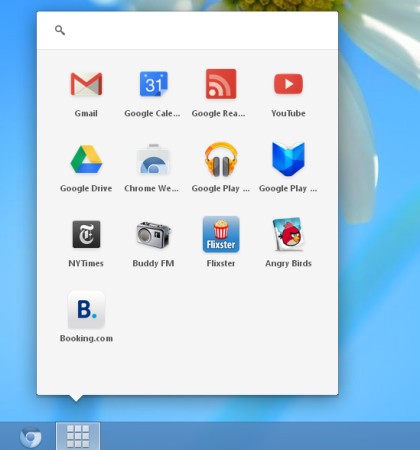
A cool feature from Chrome OS is now ported to Chrome for Windows: the app launcher. For now, it's only available in Chromium, but it will soon make its way to Chrome's dev channel. To enable it, open a new tab, enter this address: chrome://flags, press Enter, scroll to the bottom of the page, click "Enable" next to "Show Chromium Apps Launcher" and restart the browser.

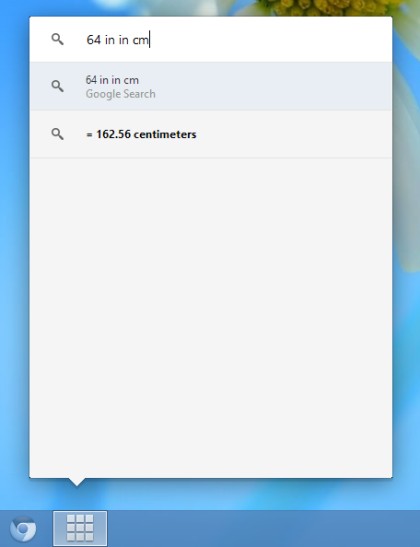
You should see a new icon in the taskbar for a launcher that includes the apps you've installed from the Chrome Web Store and a search box that works just like Chrome's Omnibox. The app launcher is great because it's there even if Chrome's windows have been closed and it's a faster way to open an app, perform a search or go to any other site. You can also use it for simple calculations and unit conversions. It reminds me of the Google Quick Search Box and a similar feature from Google Desktop.


{ via Chrome Story }

Wednesday, November 7, 2012

Archive Social Updates and Other Gmail Smart Labels

Some people complained that Gmail doesn't automatically archive "social updates". It's a new category of messages created if you use the Smart Labels experimental feature from Gmail Labs.

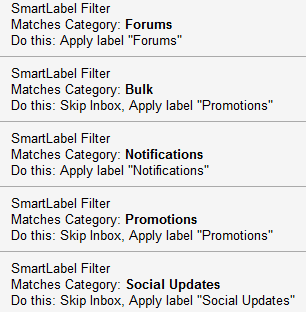
It turns out that that the "skip inbox" rule is only enabled for newsletters and promotional messages (the smart label name used to be "Bulk", but now is "Promotions"). They're not exactly spam messages, but Google assumed that they're less important and it's a good idea to archive them automatically. If you take a look at the list of filters from your Gmail account, you'll notice that Google added 5 special filters:


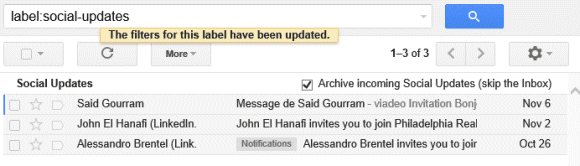
You can remove them, but you can't edit them. If you'd like to automatically archive social updates, forum messages or notifications, just click the smart label in Gmail's sidebar and enable "archive incoming social updates (skip the inbox)" at the top of the page. Obviously, the setting will use the smart label name: "archive incoming notifications", "archive incoming forums", "archive incoming bulk."


What if you accidentally delete a filter or a label added by Gmail's Smart Labels experiment? Just disable Smart Labels from Gmail Labs and enable it again. Don't forget to click "save changes".

It's worth mentioning that Gmail has 5 built-in labels: ^smartlabel_group - for forum messages, ^smartlabel_newsletter for newsletters, ^smartlabel_promo for promotional messages, ^smartlabel_notification for notifications and ^smartlabel_social for messages sent by social networks. You can use the built-in labels to create your own filters or queries and they work even if you remove the filters and user-friendly labels added by Gmail.

{ Thanks, Frank. }

Google Simplifies the Search Interface

After a few months of testing, Google released a new search interface that removes the left sidebar and replaces it with a much simpler horizontal bar placed below the search box. A similar UI was launched last year for tablets and last month for smartphones, so Google tries to offer a consistent user experience.


While the old features are still available, the advanced search tools are no longer displayed by default. You need to click "search tools" and pick the right option. Google used to display some relevant search tools and the old interface made it easier to find recent results. Now you need 3 clicks to find results from the past 24 hours instead of only one click (sometimes two clicks). Another issue is that it's much easier to accidentally click the ads when you're using the search tools.


"With the new design, there's a bit more breathing room, and more focus on the answers you're looking for, whether from web results or from a feature like the Knowledge Graph. It's going out to Google.com users in the U.S. to start, and we want to get it to users in other languages and regions as soon as we can," informs Google.

Friday, November 2, 2012

Google's Improved Word Translator

Google Translate is great for translating long texts, but it's also useful for translating words and expressions. The main difference is that words can have multiple meanings and Google Translate will usually show more than one translation.

Now it's easier to select the right translation because Google shows if they're common and groups synonyms. Another improvement is that Google displays a list of reverse translations for each candidate, so you can pick the most appropriate word. "Reverse translations can distinguish translations of different meanings and reveal subtle differences among similar words. Each translation is now annotated with its most frequent reverse translations," explains Google.

For example, the French word "fort" has a lot meanings, so it's hard to pick between "loud", "strong", "heavy", especially if you don't know English. Google's reverse translations are helpful and it's nice to know that "strong" is the most common translation.


Unfortunately, the new features are only available if you're translating from English or into English.

Thursday, November 1, 2012

Share Google Drive Files to Google+

Google Drive added a new feature that lets you share files to Google+, just like you can share them to Facebook and Twitter. Click the "share" button or right-click a file and select "share" twice, then click the Google+ icon.


Google displays thumbnails for documents, spreadsheets, drawings and music files, a player for presentations and videos and the description for archives. It's important to change the visibility options to "anyone with the link" or "public on the web".

You can also paste a Google Drive URL in a Google+ post and you'll the same thumbnails and players.


Google still doesn't do a good job at integrating Google Drive with other Google services. For example, you can't pick a Google Drive file (other than photos) when writing a Google+ post. You can't select a Google Drive file when composing a Gmail message and you can't upload files to Google Drive instead of sending them as attachments.

Microsoft's Hotmail (now called Outlook) has a clever feature that uploads large attachments and Office documents to SkyDrive, so it only sends the links.


{ Thanks, Herin. }

Gmail Smart Label for Social Updates

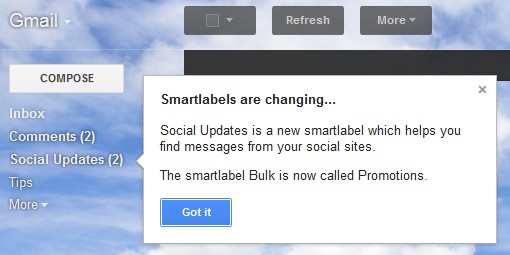
Gmail has a new smart label that groups messages received from social networks, blogs and more, so you don't have to create complicated filters. You'll find messages from Twitter, Facebook, Google+, Blogger, Quora and other social sites.

Just like the previous smart labels for notifications, forums and bulk messages (now called "promotions"), the new smart label can be hidden, renamed or even removed from Gmail's settings page.


Smart Labels is a Gmail Labs feature, so it's not enabled by default, it's still an experiment and it "may change, break or disappear at any time". "Smart Labels help you classify and organize your email. Once you turn it on from the Labs tab in Settings, Smart Labels automatically categorizes incoming Bulk, Notification and Forum messages, and labels them as such," explains Google.