Monday, October 8, 2012

Building Quality Tablet Apps

Posted by Reto Meier, Android Developer Relations Tech Lead


With the release of Nexus 7 earlier this year, we shared some tips on how you can get your apps ready for a new wave of Android tablets. With the holiday season now approaching, we’re creating even more ways for great tablet apps to be featured in Google Play - including a series of new app collections that highlight great apps specifically for tablet users.
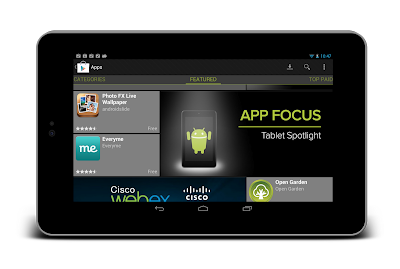


To help you take advantage of the opportunity provided by the growing tablet market, we’ve put together this Tablet App Quality Checklist to make it easier for you to ensure your app meets the expectations of tablet users.


The checklist includes a number of key focus areas for building apps that are a great experience on tablets, including:

  • Optimizing your layouts for larger screens

  • Taking advantage of extra screen area available on tablets

  • Using Icons and other assets that are designed for tablet screens


Each focus area comprises several smaller tasks or best practices. As you move through the checklist, you'll find links to support resources that can help you address the topics raised in each task.


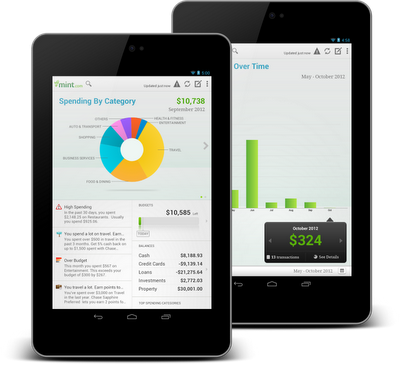
The benefits of building an app that works great on tablets is evident in the experiences of Mint.com, Tiny Co, and Instapaper who reported increased user engagement, better monetization, and more downloads from tablet users. You can find out more about their experience in these developer case studies.


The Tablet Quality Checklist is a great place to get started, but it’s just the beginning. We’ll be sharing more tablet development tips every day this week on +Android Developers. In Android Developers Live, Tuesday’s Android Design in Action broadcast will focus on optimizing user experience for tablets, on Thursday we’ll be interviewing our tablet case studies during Developers Strike Back, and on Friday’s live YouTube broadcasts of The App Clinic and Friday Games Review will be reviewing apps and games on Android tablets.


What are your best tips for building great

tablet apps?


Join the discussion on

+Android Developers


Saturday, October 6, 2012

Google Improves Results for Natural Language Queries

Now that Google's voice search technology has improved and it's used by more and more people, the search engine has to be smart enough to understand natural language queries, which are often verbose.

As you can see from these screenshots, Google can find instant answers for complicated queries like [225 cm + 134 mm plus two times 45 cm minus one and a half meter] or [127 euros times 3 - 15 percent in hungarian money]. You don't even have to know the name of the currency you want to convert and Wolfram Alpha won't help you.


{ via Inside Search Blog }

More Google Results From the Same Author

Google found an interesting way to use the authorship data it has obtained. As you probably noticed, many search results from news sites and blogs include the name of the author and link to the corresponding Google Profile. There's also a link that lets you restrict the results to the pages written by an author: "more by [author name]".

Now Google adds 3 search results from the same author after you visit a page, spend some time reading it (more than 2 minutes?) and then go back to the search results. Google doesn't know if you actually liked the page, but it assumes that you found it useful because you haven't gone back to the search results page after a few seconds.

Here's a screenshot that shows a regular Google search result enhanced with authorship data:


... and this is what happens after visiting the page, reading the article and going back to Google's SERP.


"If a user visits an article by an author and it seems like they'd be interested in finding more articles by this author, when they click the 'Back' button to return to the results page, we'll show more results by that author," explains Google.

The results added by Google aren't always useful and sometimes they aren't even related to your query. For example, the 3 links from this screenshot send you to a search results page from Ars Technica, a page that includes some other articles from the same author and the Google+ profile page.


{ via Search Engine Land }

Select Text With Similar Formatting in Google Docs

Google Docs added a cool new feature that lets you select all the text with similar formatting, so you can quickly make some changes. It's like "find and replace" for formatting.

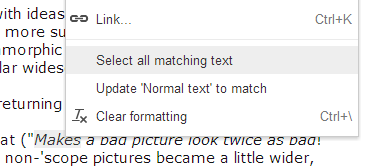
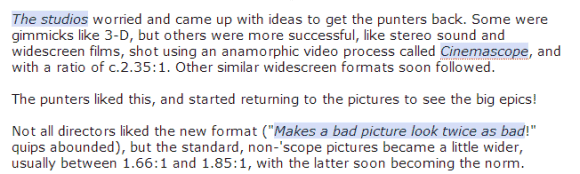
For example, you can right-click a word from a text that uses the "Heading 1" style, click "select all matching text" and change the style to "Heading 2". Unlike Microsoft Word, Google Docs doesn't select the text that has additional formatting applied over a style.


"Clicking Select all matching text will look for parts of your document that match your selection's text style — its font, font weight, size, color, and whether it's been bolded, italicized, or underlined, or struck-through. It will not take into account paragraph styles, such as line spacing or alignment," explains Google.

Now it's time for Google to add "paste and match", which lets you paste some text without having to worry about formatting. Now you need to use the "paint format" button.

{ via Google Drive Blog }

Thursday, October 4, 2012

Street View for Mobile Browsers

Sometimes web apps are better than native apps because they can be constantly updated and users always have the latest version. Google still hasn't released a native Google Maps app for iOS, but it has improved the mobile web app by adding support for street view. Now the Google Maps web app has all the features from Apple's old maps, even if the performance is inferior.

"With access to Street View on your phone, you can use panoramic, street-level imagery to explore and navigate the places around you, even on the go," informs Google. Obviously, Street View for mobile browsers uses SVG and HTML5, not Flash.


If you've updated an iPhone, iPod Touch or iPad to iOS 6, open maps.google.com in Safari, tap the arrow icon and then "add to home screen". Now you can open Google Maps from the home screen, search for local business, get directions, switch to the satellite view or open your personalized maps. Google has constantly improved the maps service in the past 7 years, so Apple has a lot to catch up.

The Google Maps web app is not new, but it will be used a lot more, now that Google Maps links no longer send users to the built-in maps app and open in the browser.

Wednesday, October 3, 2012

Skip the CAPTCHA When Creating a Gmail Account

Adding a phone number to a Google account is not always required, but even if you can get away without adding one, Google will periodically ask you to verify your account when you log in. It's just a security feature that discourages spammers from creating a lot of Gmail accounts, but it's still annoying.

"In an effort to protect our users from abuse, we sometimes ask users to verify their identity before they're able to create or sign into accounts. Requiring proof of identification via phone is an effective way to keep spammers from abusing our systems," informs Google.

Now when you create a Gmail account, there's a new option that lets you skip the CAPTCHA: "skip this verification (phone verification may be required)".


After enabling this option, Google asked me to verify the account by sending a text message or making an automated call.


Just because you don't skip the CAPTCHA doesn't mean that Google won't ask for your phone number. I've tested this and Google asked me to verify an account even after solving the CAPTCHA.

It's interesting to notice that Google's wording is "phone verification may be required", which means that it's not always required. A few years ago, phone verification was limited to a small number of countries, but now it's widespread.

Google still asks you to create a Gmail account when you sign up from Google.com, Google Image Search, Google Translate, Gmail, Google Play and Google+, but you can create a Google account using a non-Gmail email address from other Google services like Google Maps, Google Calendar or Google Drive.

{ Thanks, Herin. }

Monday, October 1, 2012

Download the Videos You've Uploaded to YouTube

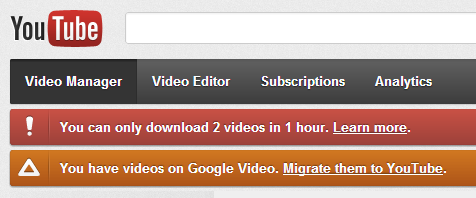
YouTube lets you download the videos you've uploaded to the service, but the feature has a lot of limitations. "You can download MP4s of your own uploads, so as long as they do not have any copyrighted content or an audio track added through the Audio tool." But that's not all: "there is a limit of two downloads per hour for downloading your video to MP4. The Download MP4 button will not appear next to your videos if you've already downloaded two videos in an hour."


The limitations are absurd, considering that they are your videos and you've uploaded them. There are many services and apps that let you download any YouTube video, but they break YouTube's terms of services.

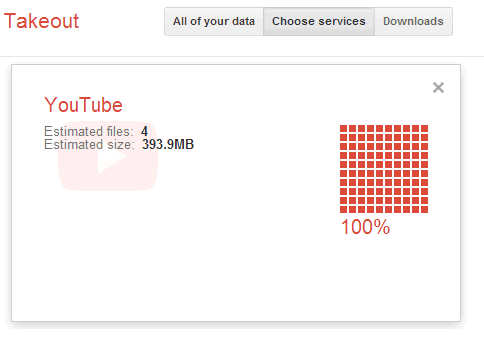
Fortunately, Google's Data Liberation launched a much better feature in Google Takeout: download the original videos you've uploaded to YouTube with one click. That's right, no more limitations, you can download all your videos and it's the only way to get the original versions, not the videos transcoded by YouTube. "No transcoding or transformation - you'll get exactly the same videos that you first uploaded. Your videos in. Your videos out," explains Google.


Hopefully YouTube doesn't find out about this feature and cripple it with some preposterous limitations.

{ Thanks, Herin. }